
Are you tired of staring at the annoying Canva Pro crown icon just to get a clean, transparent background? You don’t need a premium subscription to fix this. Here is my simple 10-second trick to get transparent layouts for free.
The Paywall Problem We All Face
Most people like me thought that the only way to get clean, professional graphic cutouts was to pull out a credit card and pay for a premium subscription. I spent months staring at that annoying little crown icon next to the transparency download checkbox, feeling completely locked out. Every time I finished making a killer logo layout or a sticker graphic, I had to download it with a solid white block behind it, which completely ruined the aesthetic when I tried to layer it over darker website banners. It felt incredibly restrictive. But after getting stubborn and refusing to give in to the constant upsells, My Simple Trick for Transparent Backgrounds Without Buying Canva Pro saved my budget, and it takes less than ten extra seconds to execute.

Image by StartupStockPhotos from Pixabay
My Personal Experience: The Presentation Night Panic
Let me take you back to a massive mistake I made during a freelance project last winter. I was putting together a digital media kit for a local coffee shop launch. The client needed their new circular emblem badge overlayed onto a dark, moody photograph of coffee beans for their website hero banner. Read my previous educating article on how the 5 Aesthetic Canva Font Pairings I Am Obsessed With Right Now.
I designed the logo perfectly on a free account. But when I downloaded it, it saved as a solid white square asset. When I layered it over the dark coffee bean photo, it looked atrocious. It looked like a cheap sticker slapped carelessly onto a premium presentation. The client presentation was at 9 AM the next morning, and there I was at midnight, trying to manually erase pixels around a complex circle with a shaky computer mouse.
I almost gave in and bought the paid subscription right then out of pure panic. Thankfully, I took a deep breath, closed the payment tab, and figured out a multi-step workflow that bypassed the restriction entirely. It is a bulletproof system I still use today, even when working with massive client files.
Figure 1: The solid white bounding box frustration of a free download tier (left) vs. the flawless, free background isolation achieved through the external extraction pipeline (right).
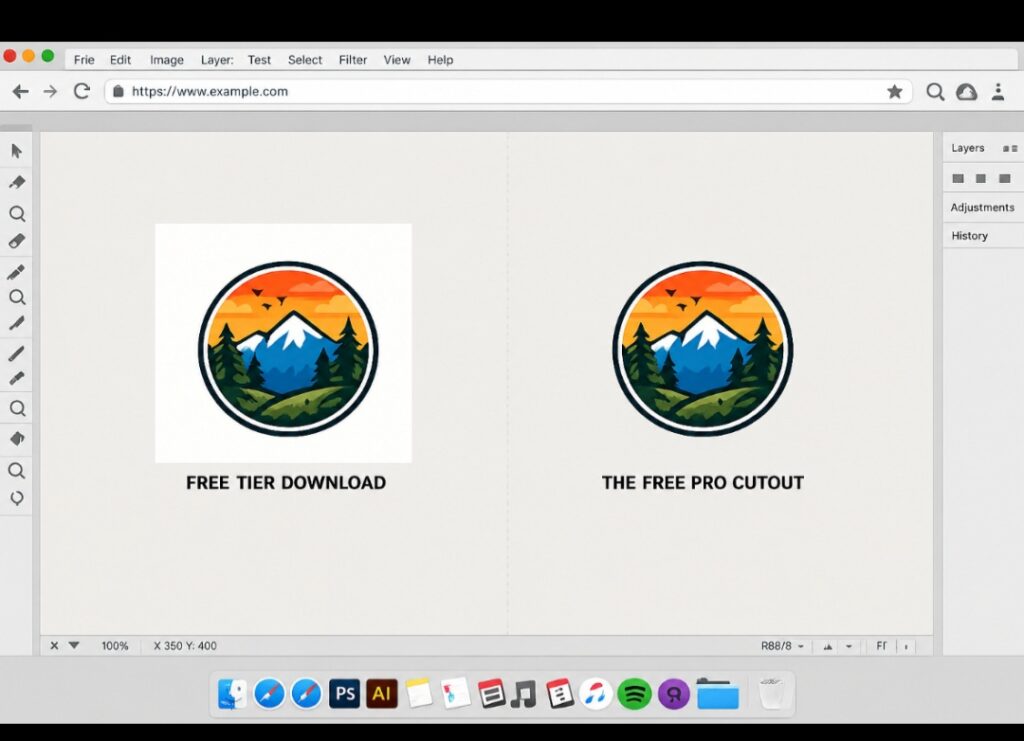
The Opaque Bounding Box That Kills Modern Layouts. When you glance at the side-by-side comparison above, the visual problem with the left-hand graphic isn’t a lack of design skill, it is structural baggage. A solid white rectangular block instantly disrupts the visual flow of a website layout, making your branding look disjointed, clunky, and aggressively amateur. It completely shatters the seamless illusion of multi-layered web design.
Look at the right side. By decoupling your graphics from that solid background envelope using a zero-loss alpha channel pipeline, you give your assets immediate versatility. The edges are razor-sharp, the background blends organically into the page, and the logo breathes. Taking those ten extra seconds to bypass the platform’s paid download box ensures your brand retains a polished, high-end editorial presence completely free of charge.
The Illusion of the Premium Restriction
We need to talk about why software companies structure their paywalls this way. They make you believe that isolating a graphic is a complex, high-level processing feature that only premium servers can handle. That is a total myth. Background isolation is basic digital alpha-channel mapping, and you do not need to pay a monthly fee to get it done.
When you download a standard PNG from the free tier, the platform encodes every empty pixel as solid white (#FFFFFF). The data for your design is still perfectly preserved; it is just trapped inside an opaque shell. The secret to breaking that shell open without losing your resolution is knowing where to run your file after it leaves your canvas download folder.
The Simple Workaround: The External Alpha Pipeline
To achieve a pristine alpha-channel transparent cutout completely free of charge, you have to split your workflow into two quick steps. Stop trying to force the free editing board to do something it blocks on purpose.
- Download at Maximum Quality
First, finish your graphic layout exactly how you want it. Go to the top right corner, click Share, then hit Download. Set the file type to PNG. Do not touch the size slider, leave it at the default 1x setting so the vector lines stay sharp. Ignore the premium transparent checkbox entirely and just hit the download button to save your image with its default white backdrop.
- Run It Through a Dedicated Zero-Loss Extractor
Once the file is on your computer or phone, open a new browser tab and navigate to a dedicated, free alpha-channel extractor like Adobe Express Background Remover or remove.bg. Upload your fresh download into their processing module. These platforms use localized neural networks to instantly identify the boundary lines of your graphic, strip the white background data away completely, and give you a true transparent download link within three seconds.
Spacing and Edge Padding Warning
When utilizing an external extraction pipeline, make sure your graphic elements do not touch the absolute edges of your design canvas. Leave at least a 5% margin of empty space all around your text or logo layout. If your elements are pressed against the border, the extraction software can easily miscalculate the boundary edges, leading to jagged, pixelated corners on your final cutout file.
Breaking the Template Pattern with Manual Stacking
Once you have your clean, transparent PNG asset back from the extractor, you can actually re-upload it straight back into your free media dashboard. This unlocks a massive design loophole.
Instead of being trapped by flat templates, you can now stack your own custom transparent cutouts directly over complex patterns, gradients, and videos inside the free tier. You are essentially building a pro-level multi-layered interface workflow without paying a single dime for their file handling upgrades.
Want a 60-Second Video Walkthrough? If you prefer seeing the exact buttons to click over reading a step-by-step guide, I highly recommend watching this practical, human-hosted tutorial by a fellow designer on YouTube. She perfectly break down how the file alpha channels respond to external manipulation, making it the absolute best companion guide to the two-step workaround we just mapped out.
Figure 2: A quick step-by-step visual workflow demonstrating how to execute alpha-channel background removal workarounds for zero cost.
Frequently Asked Questions
Does using external extractors lower the resolution of my image? Most basic web extractors cap free downloads at standard web resolution (around 500×500 pixels). However, if you use the official Adobe Express tool, it preserves high-resolution vector lines beautifully, making it the perfect choice for crisp business graphics and logos.
Can I do this trick using a mobile phone? Yes, this trick works flawlessly on mobile devices. Save your design to your camera roll from the app, open Safari or Chrome on your phone, upload the image to a free extraction site, and save the transparent result directly back to your device photos.
How do I make text backgrounds transparent for presentations? Follow the exact same two-step workflow. Type your text inside the editor canvas, download it as a standard PNG with its white frame, and run it through the extraction tool. The tool will cleanly slice out the white background inside and around the letter loops.
The Structural Habit to Build
The real takeaway from this workaround is that creative constraints always make you a smarter digital creator. Relying on one-click premium automation blocks you from understanding how image formats actually work behind the scenes.
The next time you encounter a restrictive paywall icon on a web platform, don’t immediately throw your money at it. Take a step back, look at the actual file output format you are dealing with, and find a secondary tool to finish the extraction. Your graphics will stay incredibly crisp, your branding will look totally professional, and your bank account will thank you for keeping things simple and resourceful.

Image by Pexels from Pixabay
Sources and Citations
Official file type specifications and compression details via the W3C Portable Network Graphics (PNG) Specification.
High-resolution image isolation modules available on the official Adobe Express Background Remover tool engine.
Automated boundary extraction methodologies detailed on the remove.bg Image Processing Guidelines platform database.

Udeichi Miracle Chinaza is a digital creator and graphic designer who specializes in creating clean, visual content. Passionate about making design accessible to everyone. I share practical Canva tutorials, layout tips, and creative shortcuts to help beginners and small businesses build stunning graphics with ease.