
The Upgrade Barrier We All Encounter
I’m always here to give my readers new scope to maximize their creative budget, which is exactly why it breaks my heart to see so many independent creators fall for unnecessary paywalls. For the longest time, I thought that switching an Instagram post layout into a vertical Pinterest pin or a wide Facebook banner meant I had to surrender to a costly premium subscription plan. Every single time I tried to click that shiny purple crown button at the top of the interface, a massive pop-up window would block my screen and demand my billing information.
It felt like a deliberate bottleneck designed to slow down my content production pipeline. But after getting completely fed up with the constant platform restrictions, I developed a brilliant manual workflow, Stop Paying for Magic Resize: How I Change Canvas Sizes for Free in 2026 and is the ultimate proof that you do not need a premium membership to run an efficient multi-channel brand.

Image by StartupStockPhotos from Pixabay
This Is My Experience: The Multichannel Social Launch Blast
Let me take you back to a complete meltdown I experienced while managing a digital launch strategy for a local artisanal bakery last autumn. The client reached out at 4 PM on a Friday with an urgent update: they needed their main grand opening announcement graphic adapted into three completely different aspect ratios before the morning rush. They needed a square square grid post, a vertical story flyer, and a long horizontal header banner for their email newsletter. READ PREVIOUS ARTICLE on 5 Gorgeous Retro Fonts I Found Hidden in Canva.
I was operating on a strictly free secondary backup account at the time. When I clicked the default layout adaptation option, the platform locked me out immediately. I sat there in the dark, watching the clock tick toward midnight, calculating how many hours it would take me to manually recreate every single vector decoration line, text tracking setting, and photo position from absolute scratch across three separate document files.
I almost pulled out my card to buy the subscription out of sheer exhaustion. Fortunately, my stubbornness kicked in. I realized that while the platform successfully blocks the automated conversion button, it completely leaves open the universal system copy-and-paste channels. Within five minutes, I had transferred the entire complex layout over to the new dimensions perfectly without spending a single penny. The bakery’s morning launch went off flawlessly, and that crunch session permanently changed how I approach digital layout constraints.
The restrictive premium paywall blockade on the automated resize engine (left) vs. the flawless, budget-saving freedom of the manual browser-tab clipboard pipeline (right). Look closely to my design comparison and tell me what you observed.
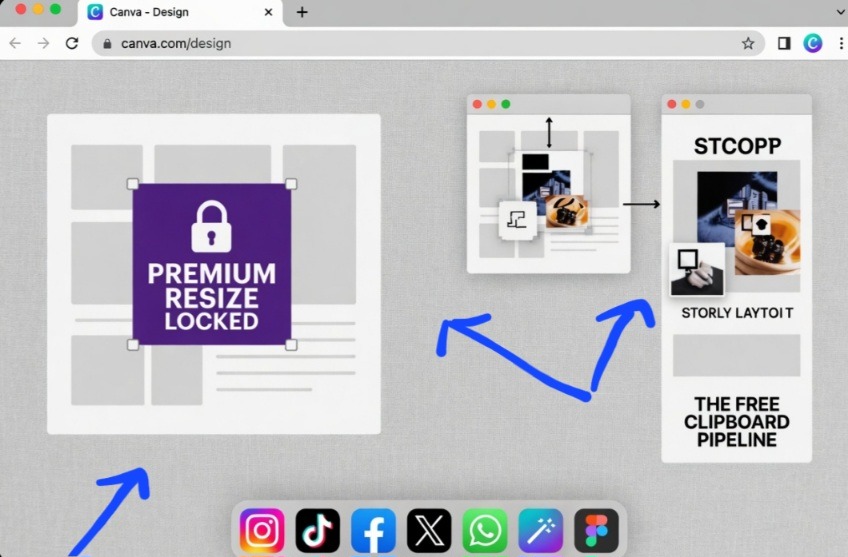
Automated Conversion Button (the illusion)
We need to break down the actual psychology of this specific software paywall structure. The system marketing framework is deliberately engineered to make you feel like adapting a graphic’s frame borders is a highly complex computational task that only premium cloud servers can handle. They brand it with terms like “Magic” to wrap a basic file utility in a cloud of mystery.
In reality, digital canvas adaptation is just a simple layout rearrangement. The software does not magically redesign your asset; even when you pay for the button, it frequently places the elements in awkward, misaligned corners that you still have to manually adjust anyway. Spending hard-earned money to unlock a button that performs a basic layout duplication function is the ultimate design mistake.
The Simple Four-Step Free Clipboard Pipeline
To shift any graphic asset into a brand-new dimension without hitting a pricing block, you simply need to utilize the universal multi-tab system clipboard technique.
- Build a Brand-New Blueprint Frame
Do not close your original masterpiece. Instead, open a secondary browser tab, navigate straight back to your primary user dashboard, and click Create a Design. Choose Custom Size and input the exact dimensions you need for your new platform destination, whether that is a tall vertical story layout (1080×1920) or a wide landscape banner profile (1200×630).
- Execute the Universal Master Capture
Switch back to your original design canvas tab. Click anywhere outside your artboard lines, then press Ctrl + A on a Windows machine or Cmd + A on a Mac computer. This simple hotkey instantly grabs every single layered element on your workspace, including background graphics, text layers, vectors, and image files.
- Move the Assets into the New Border Zone
With everything highlighted, hit Ctrl + C (or Cmd + C) to clone the entire visual system to your computer’s internal memory clipboard. Jump directly over to your second browser tab where your blank custom frame is waiting, click once onto the empty white workspace canvas, and strike Ctrl + V (or Cmd + V). Your entire creation will land right in the center of the fresh document frame instantly.
- Apply Dynamic Edge Alignment
Because you are shifting aspect ratios, your elements will initially sit in a cluster in the center of the new canvas area. Do not unselect the group yet! Grab the outer corner bounding points of the highlighted mass and scale the entire block up evenly until it fits the boundary rules of your new layout. Then, manually nudge your individual text layers or background decorations outward to complete the composition.
Stopping the AI Layout Grid Pattern
Let’s look at this workflow with absolute candor. The reason the internet looks so boring right now is because automated conversion tools place text and graphics in the exact same cold, computer-predicted configurations on every single webpage.
When you use the manual clipboard pipeline, you are forced to use your own eyes to finish the layout arrangement. Take advantage of this moment to break the predictable symmetry. If your square graphic had a centered title, try sliding that text box over to the far left column on your new vertical canvas, allowing a crisp background photo to claim the entire right side of the screen. This active human intervention instantly prevents your content from looking like an uninspired, automated template clone.
This straightforward tutorial clip from this youtube creator shows you the precise sequence.
It shows exactly how to manage multiple browser windows simultaneously to rearrange design elements across diverse aspect ratios without triggering a payment panel.
Frequently Asked Questions (what beginners need to know)
Does the manual copy-and-paste method lower my image quality? Not at all. The universal system clipboard handles your graphics as raw vector data strings and high-resolution image file paths. Your text lines stay perfectly sharp, and your images retain their original pixel density configurations completely through the transition process.
Can I copy multiple page layouts all at once? The system clipboard is designed to handle one massive structural page selection group at a time. If you are converting a multi-page PDF presentation deck, simply apply the quick select, copy, and paste sequence page by page across your browser window tabs.
What should I do if my background layer doesn’t copy over? If a specific background texture or solid color fill blocks the universal master highlight command, it is likely locked to the artboard grid. Click the background layer once, click the tiny padlock utility icon on the toolbar to release it, and then run your copy sequence again.
The Resourceful Designer Setup Habit
The real lesson hidden within this layout workaround is that software paywalls are almost always built around convenience rather than technical limitation. Giving in to every premium prompt stops you from mastering basic operating system shortcuts.
The next time you find yourself staring down a restricted utility icon inside a digital workspace, do not reach for your wallet out of frustration. Take a step back, look at how the data moves between your browser tabs, and find a clever manual workaround to complete the transformation. Your graphics will stay beautifully customized, your visual channels will look completely dynamic, and your operating budget will remain entirely yours to reinvest where it actually matters.

Image by Gerd Altmann from Pixabay
Sources and Citations
Detailed desktop web browser architecture and cross-tab clipboard performance standards via the official W3C Clipboard API and Events Specifications.
Layout scale theory and responsive aspect ratio geometry guidelines found on the Interaction Design Foundation Visual Mapping Studies.
Advanced multi-canvas data exchange workflows detailed on the Mozilla Developer Network (MDN) Web Application Guidelines.

Udeichi Miracle Chinaza is a digital creator and graphic designer who specializes in creating clean, visual content. Passionate about making design accessible to everyone. I share practical Canva tutorials, layout tips, and creative shortcuts to help beginners and small businesses build stunning graphics with ease.