
Convert Flat Presentation Grids Into Live Clickable Asset Templates Inside Canva Browser
Have you ever wondered why your email list subscribers download your beautiful free lead magnets but instantly ghost your paid offers? I used to spend days pouring my soul into creating forty-page digital guides, setting up complicated delivery funnels, and tracking my analytics like a total maniac. The downloads were rolling in completely fine, but my actual sales conversions were sitting at a miserable, flatlined zero percent. I was completely crushed.
One evening, I decided to test my own delivery system, so I signed up for my own list and opened my guide on my mobile phone. The truth slapped me right in the face. My guide looked stunning, but it was a completely dead, static piece of digital paper. If a reader wanted to buy my recommended tool or join my private community, they had to close the document, open up a separate web browser window, type out a long URL address by hand, and find the page themselves. Nobody has the patience for that. That frustrating realization forced me to scrap my outdated production methods and learn how I turn basic Canva documents into clickable, interactive PDFs.
Configuring active visual hyperlink parameters inside your Canva browser window to build interactive document mechanics.
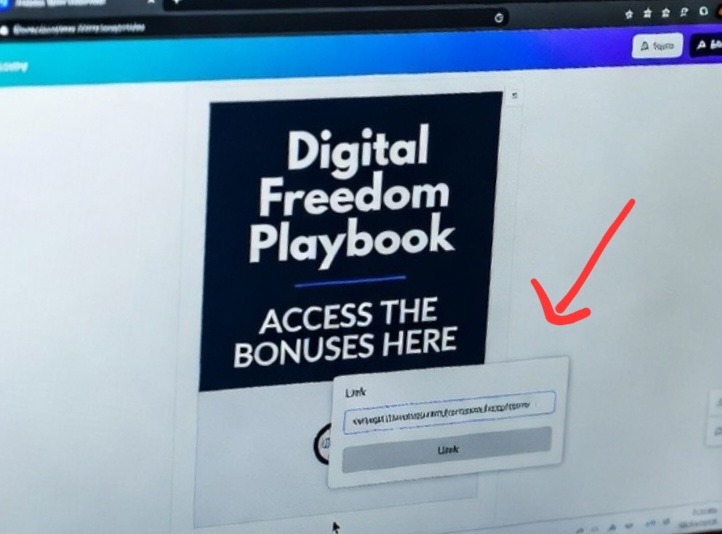
The layout highlights how applying target addresses directly to geometric button shapes instantly eliminates the friction of traditional web reading paths. It shows clear visual verification that professional document creation relies heavily on embedding actionable link layers inside clean, container-based structural layouts.
If you are still sending out flat, unclickable files to your audience, you are leaving an absolute fortune on the table. A dead file kills momentum. Your readers are highly distracted, and you need to strike while their attention is locked onto your page. Let’s talk about how to transform your digital resources using how I turn basic Canva documents into clickable, interactive PDFs directly inside your Chrome browser canvas so you can turn cold readers into instant buyers with a single tap. You can also checkout The Automatic Trick I Use to Match Text Colors to Any Photo.
The Dead Document Desert (my experience)
Let me be completely transparent about the massive workflow struggle I went through before I figured out how to inject live functionality into my file creations. When I first started launching digital products for my brand, I was completely delusional about digital file formats. I thought that as long as a document looked visually pretty and had valuable information, people would automatically go out of their way to find my business links.
I built an elaborate launch strategy for an online course using a free 15-page workbook asset. I manually wrote out my website links in plain, unclickable text at the bottom of every page. I pushed the file live to three thousand subscribers.
When the launch week ended, I hadn’t made a single conversion. Not one. I felt like a total failure. I eventually reached out to a subscriber who gave me some incredibly brutal feedback: “Your advice was amazing, but I tried to tap the resource link on my tablet screen for ten minutes before I got frustrated and closed the file.” That text sent a shiver down my spine. I realized that my own technical laziness had built a massive wall between my audience and my cash flow. You cannot expect people to do extra manual work to buy from you; you have to make the pathway as completely effortless as humanly possible.
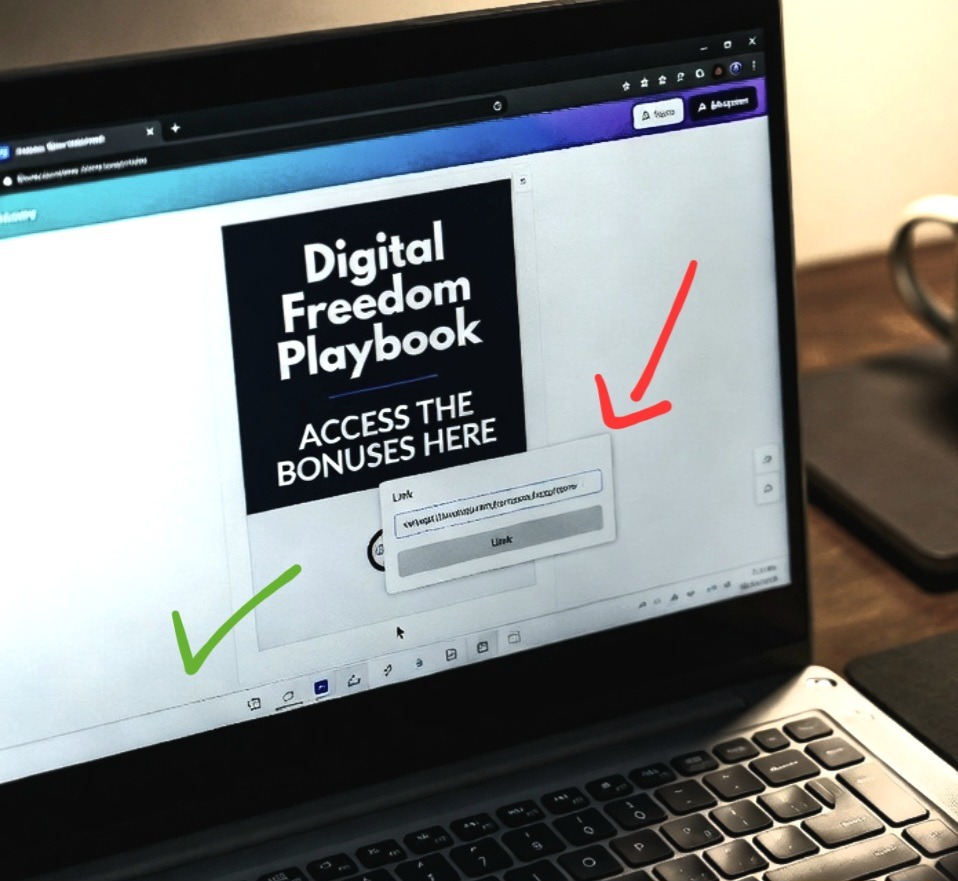
Embedding premium clickable target fields into digital document workflows inside Chrome before executing final file exports.
The 3-Step Hyperlink Trick That Ignites Your Files
Let’s skip the boring technical lectures and look at the exact interface configuration that builds live link anchors into your files in seconds. Most creators think they need to purchase expensive external document editor subscriptions just to add working links to their layouts. You are completely wasting your money if you do that.
Here is the exact pattern to execute inside your system workspace right now:
[ Select Text or Shape Layer 🖱️ ] ➔ [ Click Three Dots Menu / Link Icon 🔗 ] ➔ [ Paste Destination HTTPS URL 🚀 ] All you need to do is highlight the specific phrase, button shape, or photo asset you want to make interactive. Look up at the contextual formatting menu running across the top of your browser screen and click the small Link icon (it looks like two interlocking chain loops). If you don’t see it immediately, click the three horizontal dots icon to expand your tool properties.
A small search input window will instantly drop down directly over your canvas page. Type or paste your destination web address directly into that empty field and hit the Enter key on your keyboard. The software will instantly apply an active digital link mesh code across the entire bounding border of your element. When you export your project file, that element acts as a fully live doorway.
My Absolute Hot Take on the Plain Text Trap
Here is my controversial opinion that will probably make traditional book designers mad: plain text hyperlinking is a completely dead framework for modern content consumers. Everyone tells you to underline a piece of text and turn it blue, but on a small mobile screen, those thin text links are an absolute nightmare to tap with a human thumb.
Underlined text links are lazy design choices that belong in 1998. They look messy, they disrupt your typographic hierarchy, and your readers constantly misclick them.
If you want to master how I turn basic Canva documents into clickable, interactive PDFs, you have to stop hyperlinking raw lines of text and start building dedicated, high-contrast visual buttons. Create a solid background rectangle container shape, center a bold call-to-action text phrase directly on top of it, and lock the hyperlink matrix to the entire background shape rather than just the text rows. This transforms your text element into a massive, thumb-friendly target area that demands to be pressed.
Ensuring Your Interactivity Stays Alive During Export
The absolute biggest blunder I see young content creators make happens during the final asset download phase. They spend hours configuring beautiful buttons, links, and resource connections, and then they completely destroy their hard work by selecting the wrong export property profile.
If you download your workspace project using the wrong file settings, your final document will turn back into a dead, flat picture file.
- Click the large Share button located in the top right corner of your Chrome browser window.
- Select the Download option from the dropdown menu categories.
- Open the File Type menu block and select PDF Standard or PDF Print. Do not select JPEG, PNG, or Video formats.
- Ensure the system boxes for flattening layers are left completely unchecked, and hit download.
By saving the project as a native document file stream, the platform wraps your visual assets around a clean layer of interactive PDF link code. The links stay perfectly intact whether your reader opens the document inside an Apple Books reader, a Google Chrome browser tab, or a desktop viewer application.
Devastating Interactive Formatting Faults to Dodge
Linking to non-secure HTTP web links: Modern web browsers and mobile security applications will instantly block outbound links that do not utilize a secure HTTPS prefix protocol. Always verify that your pasted destination URL fields are fully encrypted to prevent scary security warning pop-ups from alienating your audience.
Crowding multiple buttons too close together: If you place three interactive link shapes directly adjacent to one another without sufficient breathing space, mobile readers will constantly tap the wrong button by accident. Maintain at least a forty-pixel buffer boundary zone around every clickable zone.
Neglecting a clear visual call-to-action clue: Human beings do not blindly tap objects on a page unless they are explicitly commanded to do so. Never assume a reader knows an image or background shape is interactive; always add an unambiguous label like “Tap Here to Watch” or “Click to Access” to maximize your click-through metrics.
Want a step-by-step visual demonstration of this process? Watch this excellent, rapid tutorial from a YouTuber on How to Make a Clickable PDF in Canva to see exactly how to access the chain link options bars, turn background vector shapes into button configurations, and run error-free interactive file exports in seconds.
Frequently Asked Questions
Can I link a single button shape to a specific page inside the same document?
Yes, this is an excellent strategy for building interactive tables of contents or navigation bars. When you open up the hyperlink search input menu window, scroll past the URL input section to view the list labeled “Pages in this document.” Select your target page number, and the button will instantly function as an internal jump link.
Why do my hyperlinks stop working when I open my file inside certain email preview clients?
Certain webmail clients use primitive internal rendering engines that strip out advanced coding elements from attachment previews to save data. Instruct your subscribers in your delivery emails to download the file directly to their local device storage folders to guarantee full interactive functionality.
Can I track how many people are actually clicking the links inside my digital guides?
Absolutely. Instead of pasting your raw website URL links directly into the software input bar, route your traffic through a free link management service like Bitly or use custom tracking codes inside Google Analytics. This lets you monitor your document performance values directly from your tracking dashboard panels.
Building Direct Pathways to Success
Understanding how I turn basic Canva documents into clickable, interactive PDFs is all about shifting your creative focus from static aesthetic layouts to dynamic user experience models. Your online growth depends entirely on how quickly and easily you can guide a curious viewer from a free piece of value straight into your paid ecosystem. Once I stopped treatment my downloadable resources like old-school print paper files and started treating them like living, breathing software interfaces, my business transformations were instant. My opt-in pages converted higher, my affiliate revenue streams doubled, and my community growth stats broke records.
Take a few short moments during your next editing window inside Google Chrome to open up your active lead magnet templates. Open up that positioning links panel, build out bold, interactive button blocks, and test the functionality on your own phone screen. You will instantly realize how much more authoritative, premium, and revenue-ready your final marketing assets appear to your target audience.
Sources and Citations
Canva Official Support Guide on embedding interactive hyperlinks into active documents: Canva Help: Add Links to Designs.
Adobe Document Cloud technical documentation on interactive PDF standard structures: Adobe Acrobat: PDF Interactive Layout Specifications.
W3C digital interface accessibility metrics for actionable target dimensions: W3C Web Accessibility: Mobile Target Size and Spacing Standards.

Udeichi Miracle Chinaza is a digital creator and graphic designer who specializes in creating clean, visual content. Passionate about making design accessible to everyone. I share practical Canva tutorials, layout tips, and creative shortcuts to help beginners and small businesses build stunning graphics with ease.